
Four Years With the Logitech MX Master 3S: An Honest Long-Term Review
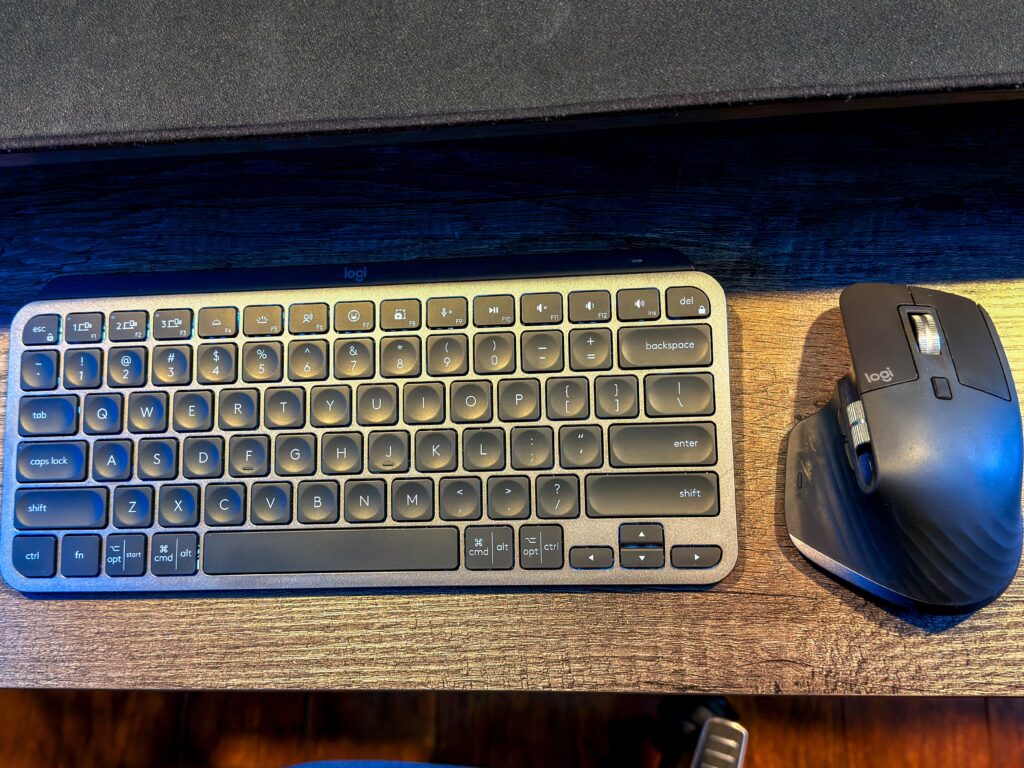
I bought the Logitech MX Master 3S the week it launched in May 2022. I’m writing this in May 2026. The mouse is sitting on my deskmat to the right of this draft, four years and however-many-clicks later, and it still works exactly like it did out of the box.
That’s the whole post, in one sentence. The rest is the honest version: what I upgraded from, what actually changed when I switched, what I’d warn you about, and what four years of daily WFH use has and hasn’t done to it. Most mouse reviews you’ll find are written six weeks after the unboxing. This isn’t that.
Heads up: this post contains Amazon affiliate links. If you click through and buy something, I earn a small commission at no cost to you. As an Amazon Associate I earn from qualifying purchases. I won’t link anything I wouldn’t buy with my own money — that’s the whole deal. The long version of this is in Why I Started The Tech JAM.
TL;DR
Four years into daily use of the Logitech MX Master 3S, I’d buy it again without thinking about it. The quiet click is the upgrade I notice every single day. The MagSpeed wheel is still genuinely the best on the market. The Logi Options+ software is the only part I’d describe as “fine, I guess.” And the long-term reliability fear you’ll read about in other reviews? Mine has been pristine for 48 months. Logitech released the MX Master 4 in October 2025; I looked at it, almost upgraded, and kept the 3S. The buyer’s call between the 3, the 3S, and the 4 is at the bottom of this post. My rating: 4.5 / 5.
The MX Master 3 came first, and the 3S was an easy upgrade
I’d owned the original MX Master 3 for a few years before the 3S launched. It was great. The MagSpeed scroll wheel had already replaced everything else I’d tried, and I’d more or less stopped looking at mice. The 3 was the kind of peripheral you forget about, which is the highest compliment a productivity mouse can earn.
So when Logitech announced the 3S in May 2022, the “real upgrade” pitch was the quiet click. Same shape, same scroll wheel, same battery, just a much, much quieter click. That was the line that made me buy it the week it dropped.
The MX Master 3 still sits on the side of my desk for use with my other computers (I also have a streaming PC and a gaming PC that I’ll rotate it’s use for with the 3 pairing options), which is the most flattering second life a piece of gear can have in this house. As of this writing, hers still works too. The line has been good to us.
If you’re already on the 3 and wondering whether the 3S is worth the swap, the short answer is: only if the quiet click matters to you. The rest is iteration. I’ll explain why in a minute.
What actually changed between the 3 and the 3S (and what stayed the same)
Logitech’s marketing for the 3S made it sound like a bigger jump than it was. The shape is identical. The weight is identical at 141 grams (Logitech, official spec). The MagSpeed scroll wheel, the thumb scroll, the seven-button layout, the rubberized grip — all carried over unchanged. From three feet away, you cannot tell the two mice apart unless one of them is the pale gray color the 3S introduced.
Here’s what’s actually different, with the new MX Master 4 included so you have the full lineup in one place:
| Feature | MX Master 3 | MX Master 3S | MX Master 4 |
|---|---|---|---|
| Released | 2019 | 2022 | 2025 |
| Optical sensor | 4,000 DPI | 8,000 DPI | 8,000 DPI |
| Click noise | Standard | ~90% quieter | ~90% quieter |
| Scroll wheel | MagSpeed | MagSpeed | MagSpeed + haptic motor |
| Actions Ring (thumb) | No | No | Yes |
| USB receiver | Unifying | Logi Bolt | Logi Bolt |
| Charging port | USB-C | USB-C | USB-C |
| Battery life (claimed) | 70 days | 70 days | 70 days |
| Weight | 141 g | 141 g | 150 g |
| Software | Logitech Options | Logi Options+ | Logi Options+ |
| MSRP at launch | $100 | $99 | $120 |
Sources: Logitech MX Master 3S product page, Logitech MX Master 4 product page, Rtings 3 vs 3S comparison, Rtings 3S vs 4 comparison.
Two of those changes matter in daily use. One was a small annoyance. The 8K DPI sensor is real, but I work on a wooden desk with a deskmat, not glass, and in four years I have never noticed a tracking limit. It’s a spec sheet number. The quiet click is the genuine improvement, and it’s the next section. The Bolt receiver change was the small annoyance: my old keyboard’s Unifying dongle had to live in the dock alongside the new Bolt dongle for the first year or so, until I eventually replaced the keyboard too. Two dongles, one purpose. Not a dealbreaker, but a tax for the transition.
The quiet click, four years in
The Logitech marketing line is “90% quieter clicks,” and I rolled my eyes at it when I bought the mouse. Marketing percentages on subjective feel usually don’t survive contact with daily life.
This one did.
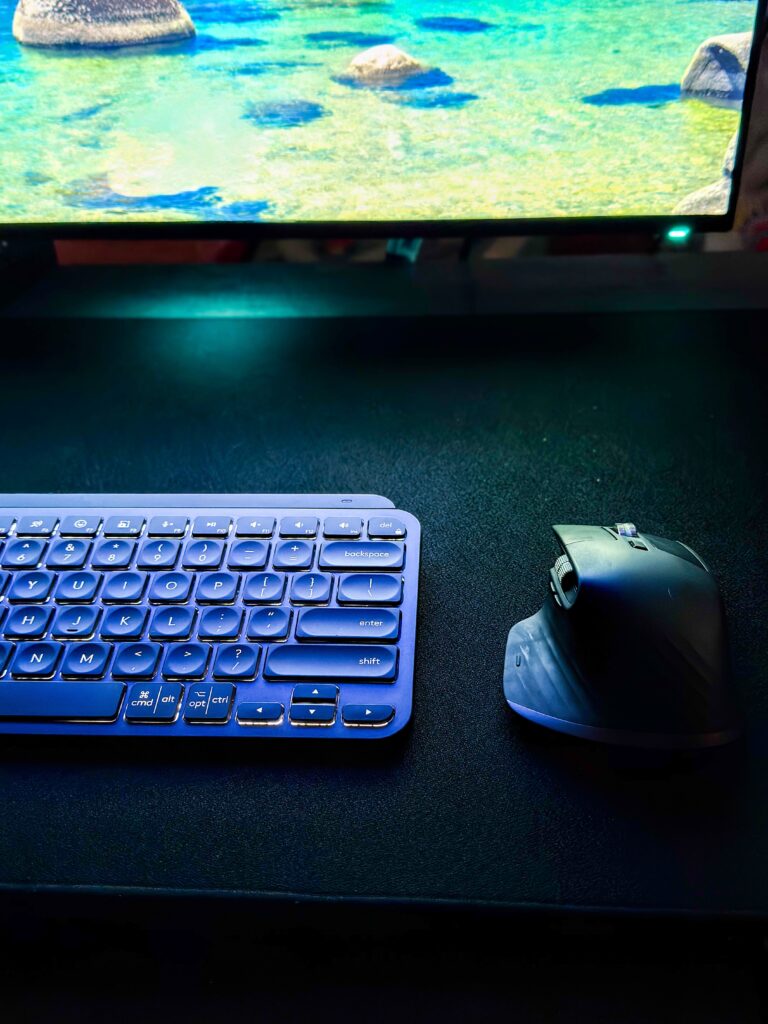
The click isn’t silent. If you put your ear close to the mouse, it’s a soft thunk. But the thing about the 3S click is that it stopped being a noise in the room. That’s the cleanest way to describe it. My MX Master 3 announced itself every time I clicked. The 3S exists only at the mouse. The first week I joined several calls for work, I clicked through forty-something file selections during the calls without thinking, and it took me five minutes to register that I hadn’t been holding my breath the way I’d been doing for years.
Four years later, the quiet click is the feature I notice every day. Not the DPI. Not the receiver. Not the software. The quiet click. If you work in a shared space, take a lot of video calls, or live with anyone who sleeps lighter than you do, this is the actual reason to upgrade. If none of that is true for you, you don’t need this generation.
A small note: the Logi quiet-click design isn’t unique to the 3S — Logitech ships it across the MX line now — but inside the MX Master family, the 3S is the one that has it. The MX Master 3 does not. So if quiet clicks matter and you’re picking between the two used, the 3S is the only call.
What four years of daily use has, and hasn’t, done to this mouse
This is the section other reviews can’t write yet, and it’s the only thing I think the internet is genuinely missing on the MX Master 3S.
After four years of full-time WFH use, conservatively eight-plus hours a day and five days a week, here’s the honest condition report:
- The left and right click feel the same as they did in 2022. No mushiness, no double-click bug, no failure.
- The MagSpeed scroll wheel ratchets and free-spins identically to day one. No grinding, no slip.
- The thumb scroll wheel still works perfectly. The ridges have softened a tiny amount under my thumb, but I only noticed when I compared it directly to my MX Master 3.
- The rubber side grip has held up. No peeling, no oily shine, no discoloration. (I do wipe it with a slightly damp microfiber once a month or so. Not religious about it.)
- Battery: I charge it roughly once a month. That’s been steady the whole four years. Logitech claims 70 days; TechGearLab’s long-term testing puts heavy users at 28–35 days; my reality has been around 30 days, even at year four. The 1-minute fast-charge for 3 hours is the most useful bailout feature on this mouse.
- Cosmetic: a hairline scuff on the heel from a desk move two years ago. That’s it.
You’ll find a lot of online discussion about MX Master switches wearing out somewhere between 12 and 24 months of heavy use. I read those threads the year I bought mine, fully expecting to write a “well, it lasted as long as it lasted” post by 2024. Four years in, my N=1 says it isn’t universal. Either I got lucky, or the failure rate is more visible than it is common. Worth knowing the concern exists. Don’t let it scare you off.
Logi Options+ is the only part I’d describe as “fine”
If the hardware story is “still going strong after four years,” the software story is “yeah, it works.”
Logi Options+ is the configuration app that handles button mapping, scroll behavior, per-app customization, and firmware updates. It is a better-looking app than the old Logitech Options it replaced. It is also slower to launch, heavier on memory, and occasionally forgets a custom binding after a macOS update. In four years I’ve reinstalled it maybe three times.
When it works, it’s actually useful. The per-app button mapping is the genuine selling point — I have the side button set to switch tabs in Chrome and to send Escape in Figma, and the mouse knows the difference automatically. If you only ever use one app, you’ll never need this. If you context-switch all day, it earns its install.
A small thing more reviewers should mention: on macOS, if Logi Options+ frustrates you, there are open-source alternatives. LinearMouse and BetterMouse handle scroll and acceleration without the bloat. I run Options+ for the per-app bindings and ignore the rest. It’s a workable peace, not a love story.
If you’re stacking the 3S into a real WFH setup, the Anker Prime TB5 dock is the other piece of hardware I’d point you toward. The Bolt receiver lives in one of its USB-A ports on my desk and has for years.
The MX Master 4 came out, and I thought about it
Logitech released the MX Master 4 in October 2025 (Logitech press release). I’ll be honest with you: I read the announcement, watched a couple of reviews, and added the 4 to my cart twice before closing the tab both times.
The two genuinely new things on the 4 are haptic feedback in the scroll wheel and a thumb-area input Logitech calls the Actions Ring. Haptic feedback means a small vibration motor inside the wheel can simulate notches, resistance, or smoothness on demand, configurable per app in Logi Options+. The Actions Ring is a configurable radial menu you bring up by pressing a dedicated thumb button. Both are interesting on paper. Neither was enough to make me upgrade.
Here’s the part nobody seems to mention. The 4 weighs 150 grams (Logitech), nine grams heavier than the 3S, which is more than it sounds when your forearm has spent four years getting used to a specific feel. The 4 uses the same 8K DPI sensor as the 3S. The same MagSpeed wheel core. The same 70-day claimed battery. The same Bolt receiver. The same quiet click. If you don’t want haptic scroll or the Actions Ring, the 4 isn’t a meaningful upgrade — it’s a $30 lateral move with extra grams.
I ran the test I always run when something new comes out and the old one still works: what would I gain, what would I miss, and would the money be better spent on something I actually need. The honest answer was haptic scroll for $120, nothing missed, and the money was better spent elsewhere. So the 3S stays. I’ll revisit the 4 in a year and see whether the haptic feature ages into a workflow staple or quietly disappears like 3D Touch did.
That’s my call, with four years of MX Master 3S muscle memory in the scale. Your math may be different, which is what the next section is for.
Who I wouldn’t buy the MX Master 3S for
The whole premise of this blog is that I’ll tell you when something isn’t right for you. The MX Master 3S is a great mouse for the right person. That person isn’t everyone.
- If you’re left-handed, this mouse isn’t for you. There is no left-handed version of the MX Master line. There has never been one, and I’d bet there never will be. Logitech sells the Lift for Left as a smaller ergonomic alternative, but it’s a different mouse.
- If you game competitively, look elsewhere. The 3S is a productivity mouse. The polling rate, the weight, and the shape are not built for twitch shooters. A casual evening of Slay the Spire is fine. Apex Legends is not.
- If you travel often, 141 grams is heavy in a bag. The MX Anywhere line is lighter and built for travel.
- If you have small hands, the fit is going to be a stretch. The MX Master line is built for medium-to-large hands. If your palm doesn’t reach the rear hump, your wrist will angle wrong and your forearm will tell you about it within a week.
- If you’re on a strict budget, the original MX Master 3 (Logitech no longer sells it new) still shows up used and refurbished on eBay and other resellers in the $50–65 range. Same shape, same MagSpeed wheel, same battery, louder click. Worth knowing before you spend $99 on the new one.
So which one should you actually buy?
If you’ve made it this far, you’re probably trying to figure out which MX Master to put in your cart. Here’s how I’d line up the three options based on the way I’d actually shop for them.
Buy the MX Master 4 at $120 if you want the latest features and you’ll actually use them. The haptic scroll wheel and the Actions Ring are real upgrades, the rest of the mouse is the proven MX Master shape, and you’re getting the longest software-support runway of the three. This is the pick for power users who are going to spend an evening setting up per-app haptic profiles and a custom Actions Ring menu. If that sentence excited you, the 4 is the right call. If it didn’t, keep reading.
Buy the MX Master 3S at around $99 if you want a great mouse without paying for features you may not use. This is the value sweet spot of the lineup. You get the quiet clicks that matter on work calls, the same MagSpeed wheel that’s the best on the market, the same 8K sensor, and roughly 95% of the MX Master 4 experience at ~40% less (Rtings puts the two side by side). Four years of my own daily use says this mouse holds up. It’s the one I’d hand to someone shopping today, no asterisk.
Hunt down a used MX Master 3 on eBay or another reseller in the $50–65 range if you want to save more and the loud click doesn’t bother you. Logitech doesn’t sell this one new anymore, so you’re shopping the secondhand market, but they aren’t hard to find in good shape. Same shape as the 3S, same MagSpeed wheel, same battery, same comfort. You give up the quiet click and the 8K sensor (which most people don’t need anyway). If you don’t take video calls in a shared space and you don’t live with anyone who sleeps lighter than you do, the 3 is genuinely 90% of the 3S at half the money.
Honorable Mention
If you’re stacking the 3S onto a keyboard tray with the same real-estate constraints I have on mine, the Logitech MX Keys Mini is the keyboard I actually pair with it. Small enough to share the tray without crowding the mouse, light enough to throw in a bag for travel, and it pairs to the same Bolt receiver. One dongle, both peripherals, cursor handoff between two computers if you run that kind of setup. It’s been the unsung half of my desk for years.
If you’ve got the desk space and want a numpad, the full-size Logitech MX Keys S is the bigger sibling and pairs the same way. And if you’re starting from scratch on a WFH desk, the MX Master 3S and MX Keys S combo is the cleanest single-order way to do it, and it slots in as the closest thing to a turnkey desk kit Logitech makes.
So that’s it
Four years in, the MX Master 3S is the mouse I reach for every morning without thinking — which, on a peripheral I’ve put forty hours a week into for almost half a decade, is the highest compliment I can give. If you have the MX Master 3 and you’re happy with it, keep it. If you have the 3 and you’re tired of hearing yourself click, the 3S is worth the $99. And if you’re shopping for your first prosumer mouse, this is the one I’d hand you, while telling you everything I just told you. Thanks for reading.
By J.A.M.